Get to know TablePress
Make Your Table Interactive
In this guide, you’ll learn how to provide your visitors with interactive features for your TablePress table, such as sorting, searching, and pagination, to make your tables more engaging and attractive.
If you previewed your table after placing it on a page, you may have noticed that it’s already interactive. Most of these features are enabled by default, so this step is mainly about understanding what they do and adjusting them if needed.
To get started, go to your WordPress dashboard > TablePress > All Tables and edit your table. Then scroll down to the “Table Features for Site Visitors” section.
By default, all options but one are checked. I’ll explain what each one does, so you know which ones to untick and which ones to keep.
The Table Features for Site Visitors
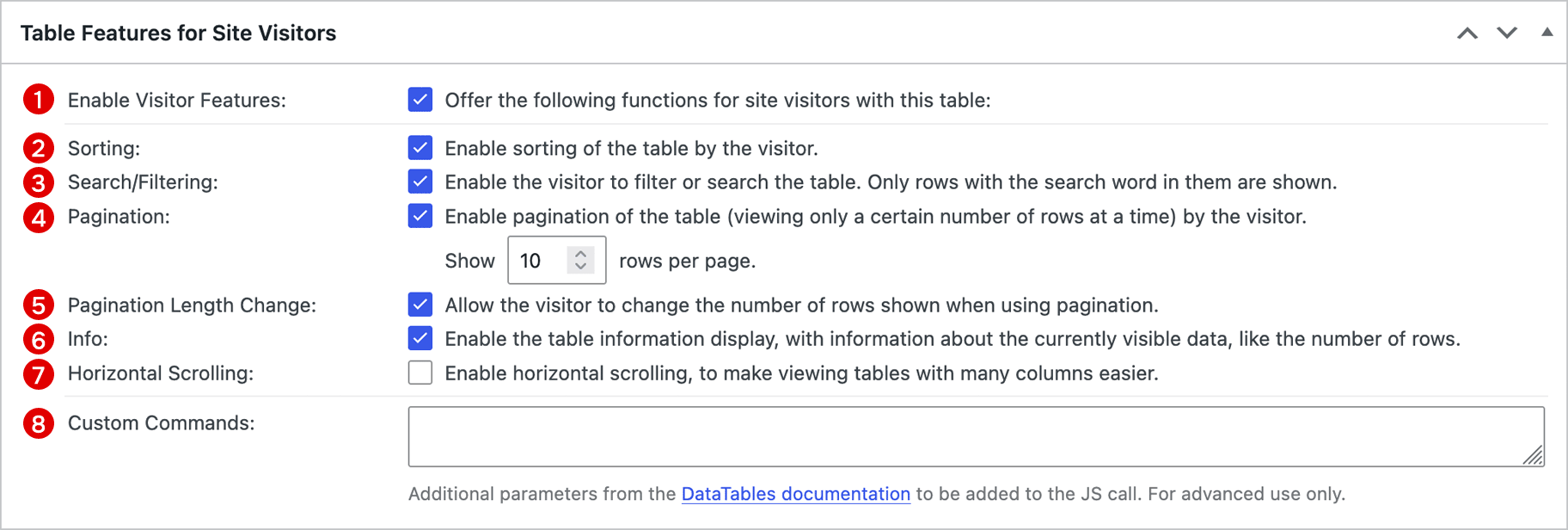
- Enable Visitor Features: This is the main switch. If you untick this, the table will be shown like a printed, non-interactive table, with no way to interact with it.
- Sorting: Activate this to show sorting arrows in each header row cell that allow reordering the table based on that column’s content.
- Search/Filtering: Ticking this will show a search field above the table. Visitors may enter a search term for which to search all cells and show only the rows that have at least one cell containing a match for that term.
- Pagination: Long tables might disturb the reading flow, so this will break them up into separate “pages.” Visitors can browse through these pages with the pagination panel that’s added below the table.
- Pagination Length Change: This relates to the previous option and sets the default number of rows to be shown on a single “page” of your table. Visitors may choose a different value from the dropdown menu that’s added alongside the search field.
- Info: This adds a line saying “Showing X to Y of Z entries” next to the pagination panel so that your visitors always know what they are looking at and how much more there is.
- Horizontal Scrolling: This is turned off by default. Depending on your site’s theme, if your table has many wide columns, it might extend beyond your page’s main content area. Making cell content smaller or breaking it awkwardly into multiple lines is often not an option, so this feature limits the table’s width and adds a horizontal scroll bar.
- Custom Commands: These allow advanced control over table behavior and features. They are not required for most use cases and will be covered in a later guide.
When to Adjust Settings
In most cases, you can leave everything as it is. The default configuration is designed to work well for a wide range of tables. However, consider adjusting the settings in these situations:
- Your table has 10 rows or fewer: Disable pagination and search.
- There are too many or too wide columns for the table to fit on the page: Enable horizontal scrolling.
- Your table is simple or static: Disable search.
- Your table is small and illustrative: You might not want to offer any interaction at all; untick “Enable Visitor Features” for a static table.
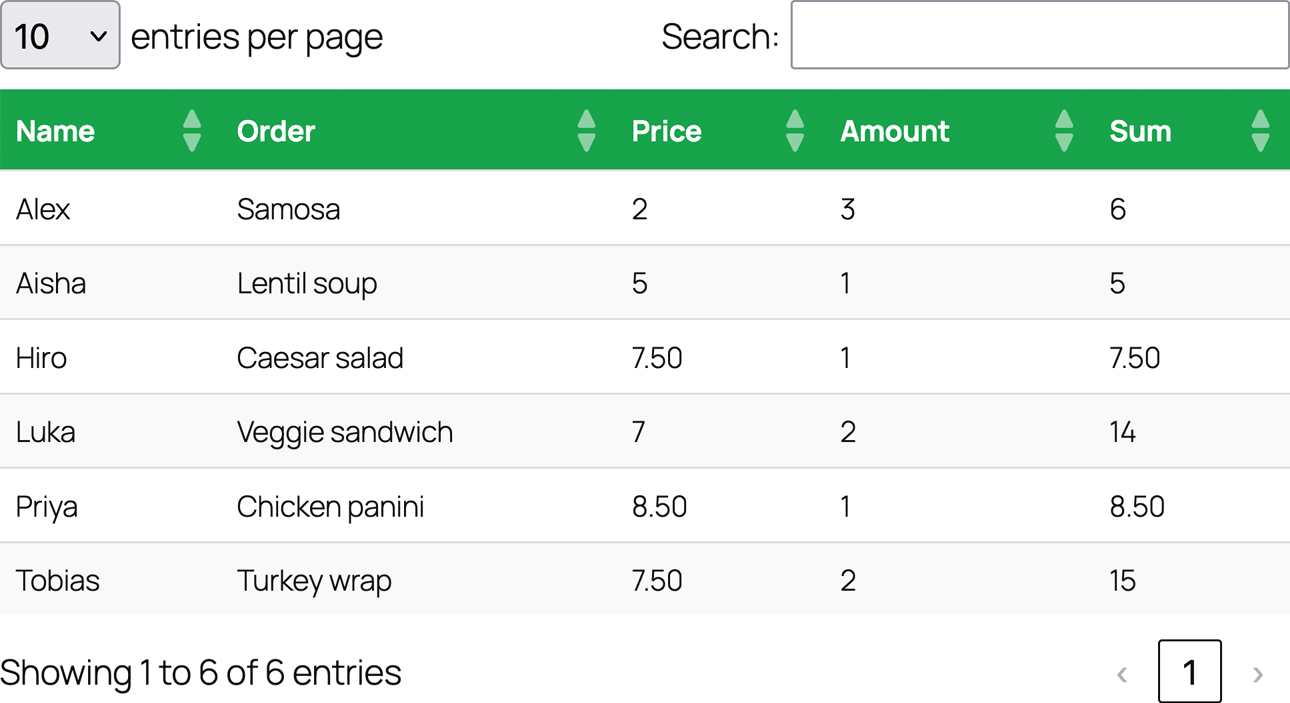
Since my fantasy office lunch group has only six members, the lunch order table won’t need pagination. I’m going to disable it to make the table feel cleaner.
Having trouble with the “Table Features for Site Visitors”? Our Frequently Asked Questions can offer some pointers, and you’re always welcome to reach out to us.
Good to Know
The horizontal scrolling feature offers very basic device compatibility for your tables, making sure your tables are usable independent of screen size. For true responsiveness, including a range of selectable modes and breakpoint control, check out the Responsive Tables module of TablePress.
To make browsing long tables easier, the Advanced Pagination module for TablePress adds several powerful pagination features. Visitors navigate large tables more efficiently with automatic scrolling to the top of the table after each page change, first and last page buttons, a page number input or page selection dropdown, or a “Show more” button that loads additional rows only when needed.
If you’d like to rearrange the table controls adjacent to your table, like the search, pagination, or table information, take a look at the Table Layout module of TablePress.