Get to know TablePress
Import Existing Tables into TablePress
In this guide, you’ll learn how to import existing tables into TablePress. Since data-rich spreadsheets can grow to dozens of columns and tens of thousands of rows, recreating them manually as TablePress tables is usually not an option.
Most TablePress users keep their data in spreadsheets on their computer or in the cloud, and only create tables directly in TablePress when they need a small, illustrative table. This is a common workflow, and TablePress is well prepared for both occasional and recurring imports.
Whether your data comes from Microsoft Excel, Google Sheets, Apple Numbers, OpenOffice, or another application, TablePress can import a variety of common file formats and turn them into editable WordPress tables.
How to Import a Table
Go to your WordPress dashboard > TablePress > Import a Table.
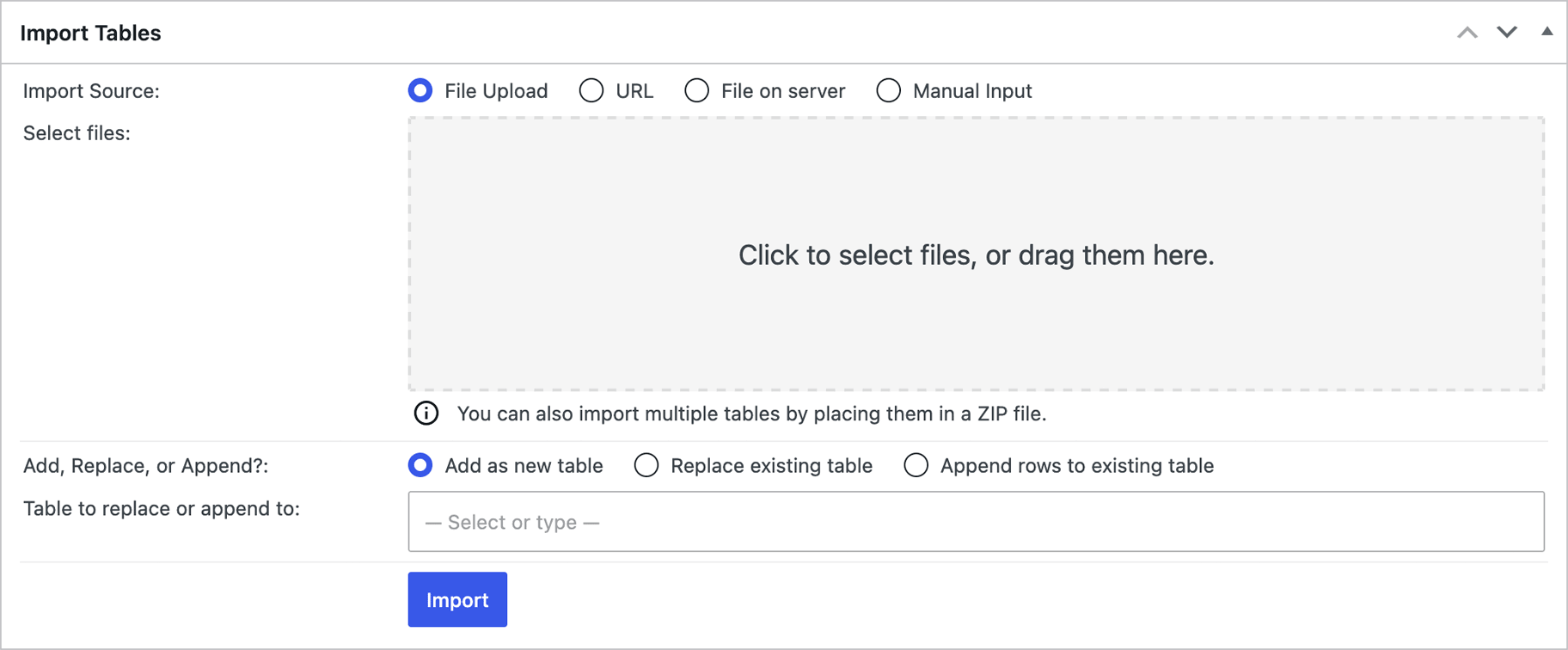
- Choose whether to import from a file on your computer, from a URL, from your server’s file system, or paste the table code directly into the “Manual Input” field.
- Select your file, drag it into the upload area, enter the source URL or path, or paste the code.
- Decide whether to create a new table, append to an existing one, or replace it.
- Click Import.
Once the import is complete, your table behaves just like one created directly in TablePress. You can edit it, adjust its settings, and place it anywhere on your site.
Supported Import Sources
TablePress supports several common data sources:
- Microsoft Excel Workbooks (.xlsx, .xls)
- CSV files
- OpenDocument Format (.ods)
- JSON files
- HTML tables
- Google Sheets
- Microsoft Excel Online
For files stored on your own computer, simply upload them through the Import screen. For cloud-based spreadsheets such as Google Sheets or Excel Online, TablePress imports the data directly from a shared URL.
Importing from Google Sheets
Google Sheets are a convenient way to maintain data collaboratively while keeping TablePress as the publishing tool. Before the import, you’ll need to make the spreadsheet accessible and adjust its public Sharing URL for importing so TablePress can read it.
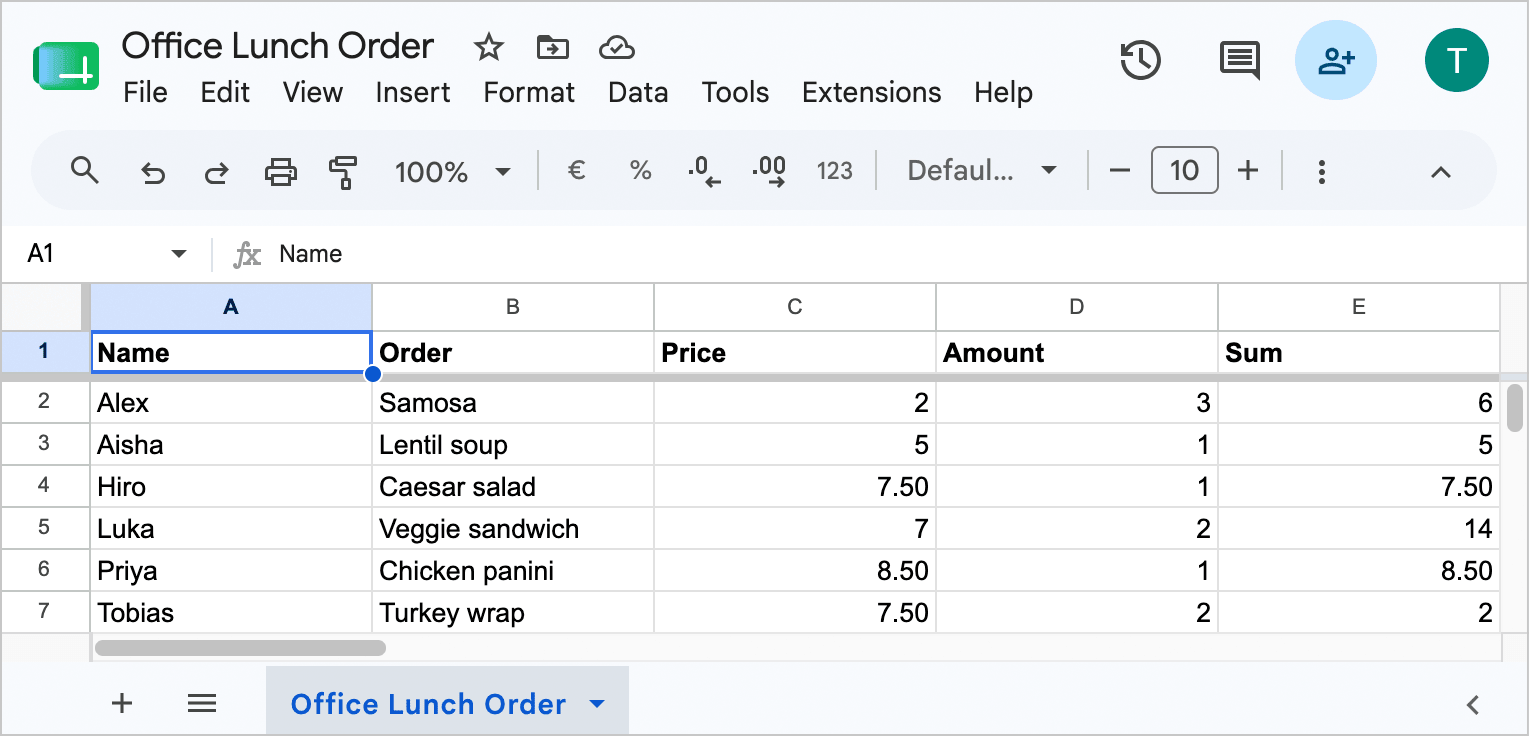
Rather than repeating those steps here, we’ve prepared a dedicated guide: How to Import from Google Sheets
Importing from Microsoft Excel Online
Microsoft Excel Online works in a very similar way. After sharing the workbook and preparing its URL, you can import it directly into TablePress.
For guidance, see the dedicated tutorial: How to Import from Microsoft Excel Online
One-Time Imports
Standard imports create a snapshot of your source data. If you later edit the original spreadsheet, those changes are not reflected automatically in your TablePress table. Whenever you update the original spreadsheet, simply repeat the import and choose to replace the existing table.
If you regularly publish changing spreadsheets, TablePress Max includes the “Automatic Periodic Table Import” module, which can refresh imported tables automatically at configurable intervals. This can save a lot of time and improve reliability if you are often updating the same table from a local file.
Good to Know
Imports are always one-way. No matter the method, changes you make to TablePress tables never reflect back on the source files.
TablePress is really good at auto-detecting tabular data. Select the “URL” source and paste the URL to any page with a table on it—TablePress will import it and ignore all other content.
You can import tables in bulk! Collect and compress all source files in a ZIP file and drop that into the file upload field on the Import screen.