Get to know TablePress
Make Your Table Match Your Website
In this guide, you’ll learn where the appearance of a TablePress table comes from and how to change it when necessary.
A TablePress table usually already resembles the rest of your website. That is because TablePress provides a clean structural foundation while leaving much of the visual design, such as typography, borders, and spacing, to your WordPress theme.
What TablePress Brings to the Table
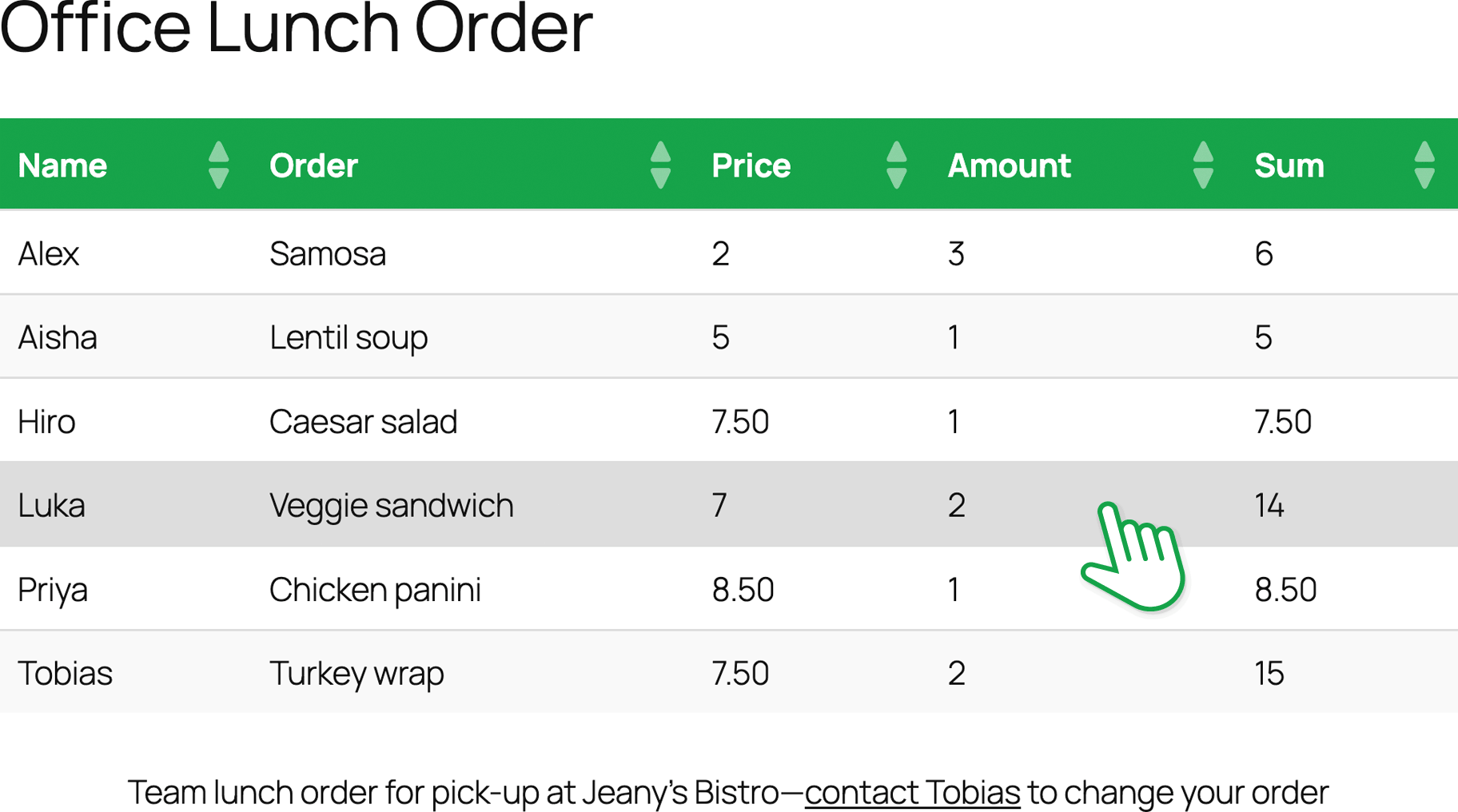
Data tables must first and foremost be readable and usable. TablePress therefore keeps its default styling restrained and focuses mainly on table structure and presentation. You’ve already encountered several options that influence how a table appears:
- Table Header and Table Footer give important rows a distinct role and usually a different visual treatment.
- Alternating Row Colors add zebra striping, making it easier to follow wide rows across the table.
- Row Hover Highlighting emphasizes the row beneath the mouse pointer.
- Table Name and Description can add a title or context information above or below the table.
The interactive features covered earlier also influence the table’s presentation. Search fields, pagination controls, information text, and horizontal scrolling all change how much content appears around the table, even though they are not styling options themselves.
Together, these features provide a clean and practical starting point without requiring you to write CSS code to adjust the styling.
Trust Your Theme
Most of a table’s visual identity comes from the active WordPress theme. Themes commonly define the site’s fonts, text colors, border styles, and spacing. Those rules often apply to tables as well, helping them blend into posts and pages without requiring a separate TablePress design.
This also explains why the same TablePress table can look different on two WordPress sites. The table structure may be identical, but the themes apply different visual rules.
Before changing anything, view the table on the frontend rather than judging it only from the TablePress preview. The frontend shows how the table actually interacts with your theme.
If the table already matches the typography, colors, and spacing of the surrounding content, leaving the defaults alone will usually produce the most consistent result.
Change the Global Defaults Visually
If your theme’s table styles do not quite fit your design or if you specifically want different colors or cell padding for all TablePress tables, the “Default Style Customizer” module in TablePress Pro and TablePress Max provides a graphical interface.
It offers predefined variations and controls for adjusting the default table colors and spacing without writing CSS code. The chosen style applies globally, which makes the module suitable when you want all TablePress tables to share the same appearance.
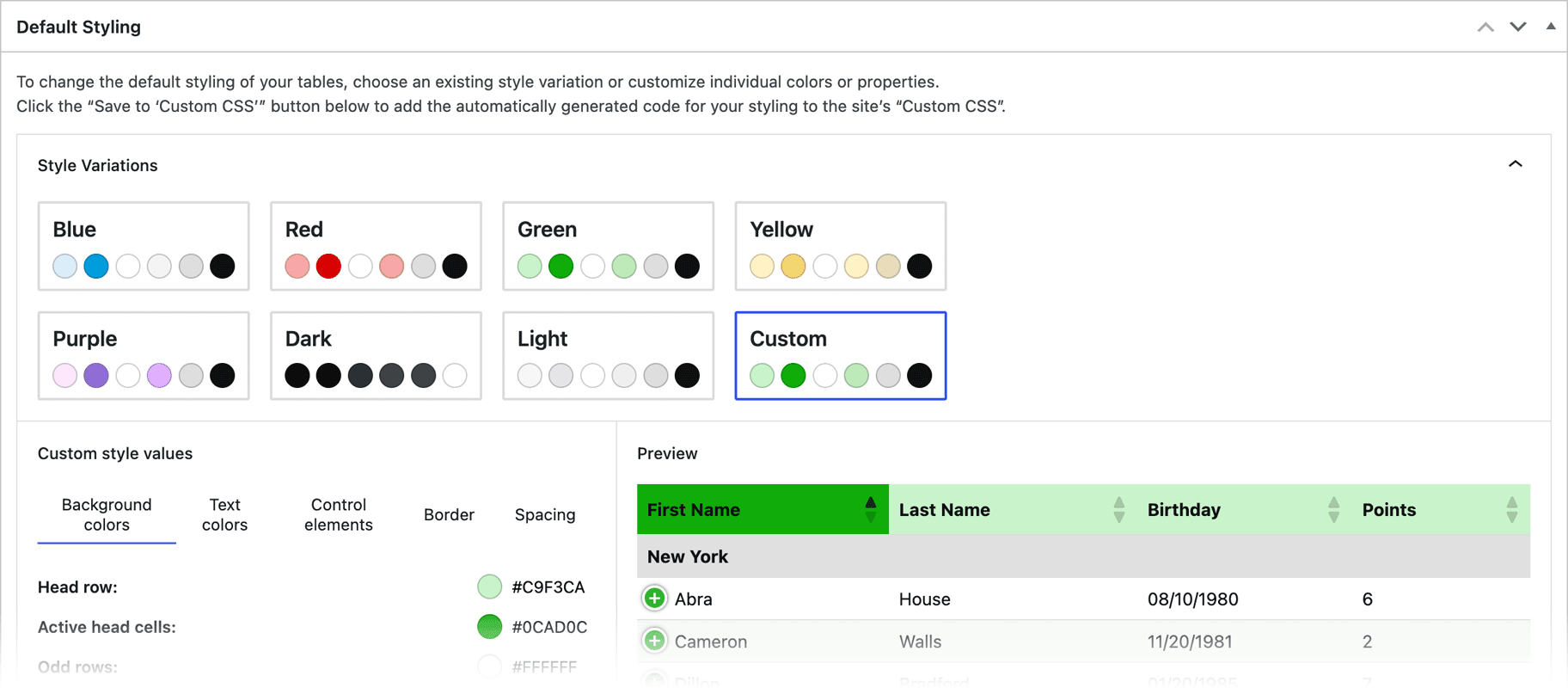
This is different from changing one table individually. The customizer modifies the overall TablePress defaults across the site.
Tables with too many columns or long cell content present a different challenge. Rather than making the text smaller or reducing the padding until the table fits, the “Responsive Tables” module offers several ways to restructure or scroll the table on narrower screens and in constrained layouts.
Add Your Own CSS
For changes beyond the visual customizer or for styling only selected tables, you can add custom CSS.
Go to TablePress > Plugin Options > Custom Styling and enter your code in the “Custom CSS” field. CSS code added there overrides the default TablePress styling without modifying plugin files, so it remains in place when TablePress is updated.
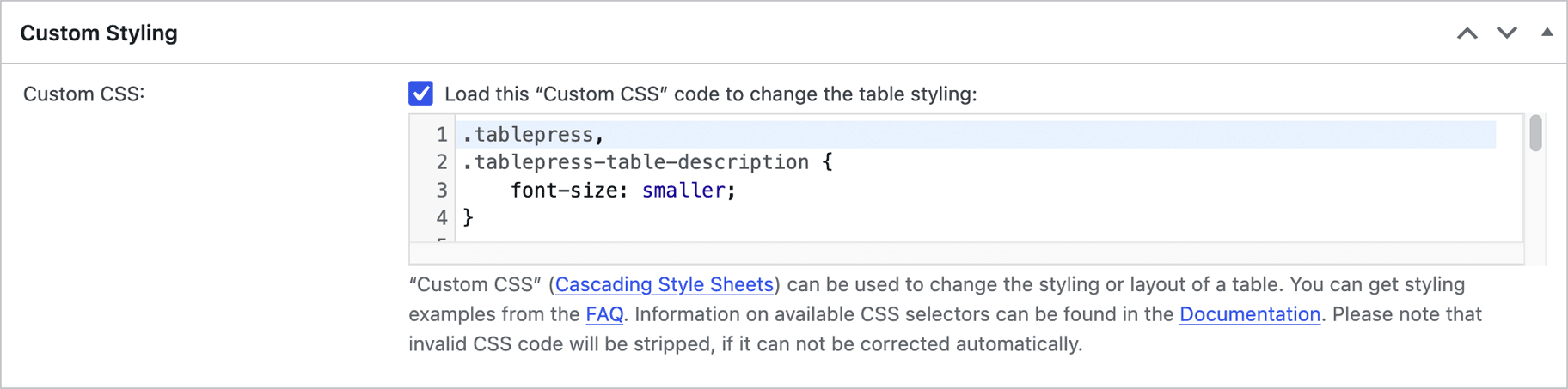
Every TablePress table and its child elements have selectors that you can use to decide where a rule applies:
.tablepresstargets every TablePress table..tablepress-id-Ntargets one specific table, withNreplaced by its table ID.- Classes such as
.column-2or.row-3target particular columns or rows.
To override the default styling, you’ll often need more specific CSS selectors that target individual parts of a table. Our FAQs cover a wide range of styling questions and examples, helping you customize almost every aspect of your tables.
Use an Extra CSS Class for Several Tables
In our article about the Table Options, you saw the “Extra CSS Classes” field. This is useful when several tables should share a style, but you do not want that style to affect every TablePress table.
For example, enter price-table in the Extra CSS Classes field of each relevant table. You can then target all of them with:
.tablepress.price-table {
	/* Add the shared styling here. */
}Code language: CSS (css)
This gives you three useful levels of control:
.tablepressfor all tables.tablepress-id-Nfor one table- your own extra class for a selected group of tables
Find More CSS Examples
CSS can change nearly every visual aspect of a table, including:
- header and row colors
- borders
- fonts and text sizes
- cell padding and alignment
- column widths
- individual rows, columns, or cells
Rather than covering every possibility here, the “Styling, Layout, and CSS” section of the TablePress FAQ contains focused examples that you can copy and adapt. The existing guides include instructions for changing fonts, table-head colors, alternating-row colors, borders, column widths, and individual cells or rows.
Good to Know
Do not edit TablePress plugin stylesheet files directly. Those changes would be reverted and lost whenever a plugin update is installed. Use the “Custom CSS” field in the Plugin Options of TablePress, your theme’s supported custom-CSS area, or a child theme instead. We recommend the “Custom CSS” field for overrides as this also ensures the correct loading order of CSS code.
Note that, while the TablePress block preview takes Custom CSS into account, the active theme can still change how the table ultimately appears on the frontend.
The End
Your table is now created, configured, imported, and presented in a way that fits your site. With that, this series of articles comes to an end. If you’d like to explore TablePress more, here are some places to continue your journey:
- Documentation for detailed guides and feature explanations.
- Frequently Asked Questions for common problems, CSS examples, and practical recipes.
- Support if you ever get stuck or have a question about your setup.